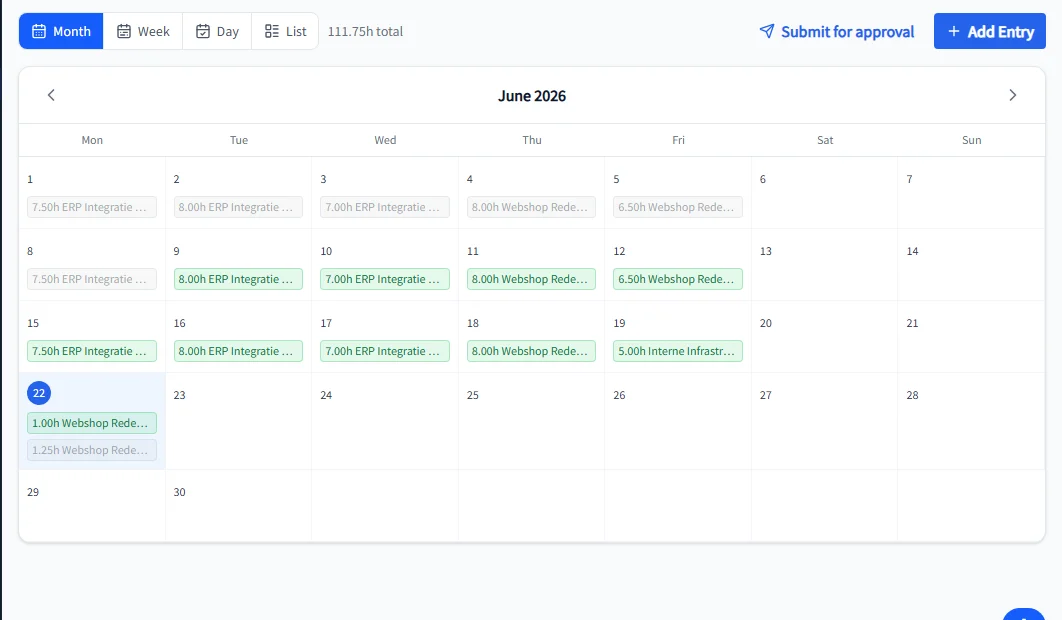
Tracking hours does not have to be complicated. PrikKlokPlus offers a calendar view that shows at a glance how many hours you logged per day, for which projects, and whether there are any gaps in your week. This article shows you how it works.
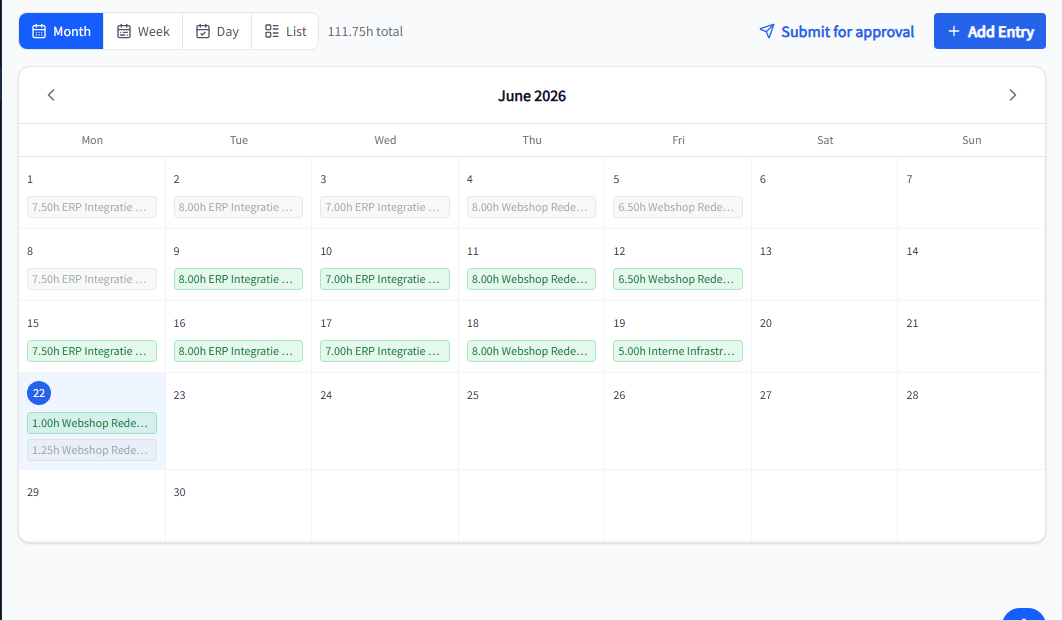
The calendar view: your working week on one screen
After logging in, you see your calendar immediately. By default it shows the current month, with a colour-coded bar per day indicating how many hours you have registered. Days without hours stand out immediately — so you never miss a billable entry.
- Month view: overview of all logged days at a glance
- Week view: day-by-day details, ideal for a weekly check
- Day view: all hour entries for one specific day, including descriptions
Logging hours: three steps
Creating a new hour entry takes less than ten seconds:
- Click a day in the calendar — or use the "Add hours" button
- Enter the number of hours and select the associated project and optionally the task
- Save — the entry appears in your calendar immediately
You can create multiple entries per day, for example if you worked for two different clients. Each entry gets its own colour per project, so the calendar shows at a glance how your time was distributed.
Linking to projects and tasks
Every hour entry is linked to a project. Projects are connected to a client in your CRM, which means approved hours become billable without retyping anything. Optionally you can also select a specific task within the project — useful if you want to report at task level or if your team works with sprints.
Submitting hours for approval
As a team member, you submit your hours weekly using the "Submit week" button. Your manager receives a notification and can approve the hours or return them with a comment. Hours are only marked as billable after approval.
As a freelancer without a team, you skip this step: your hours are immediately visible in your hours overview and ready for invoicing.
Exporting for your administration
From the calendar view you can export a time summary as PDF or CSV. Useful for:
- Your annual tax return as a freelancer (proof for the hours criterion)
- Monthly reports for your client
- Internal capacity planning overviews
Backfilling: hours from yesterday or last week
Forgot to log hours? No problem. Click any past day in the calendar to add entries. PrikKlokPlus does not lock past dates — you can always fill gaps, and the timestamp records when the entry was created.
Getting started
- Create a free account on PrikKlokPlus
- Add a client and a project in your CRM
- Click today in the calendar and log your first hours
