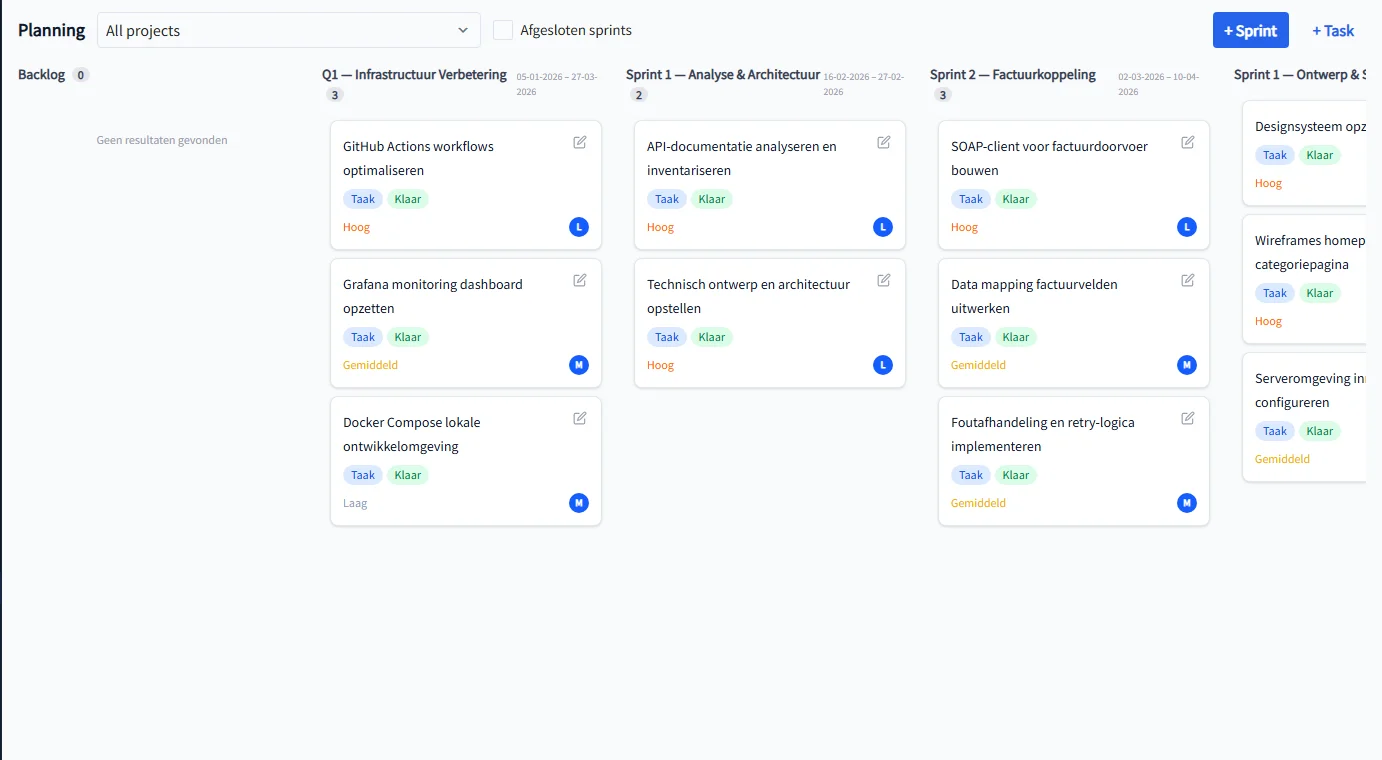
Working agile starts with a structured backlog and clear sprints. PrikKlokPlus provides a Planning page where you create tasks, park them in the backlog, and schedule them into sprints — all in one screen, linked to your project and team.
The Planning page: backlog and sprints side by side
The Planning page shows a horizontally scrollable column layout. On the left is always the Backlog: all tasks not yet assigned to a sprint. Next to it, a column appears for each sprint of the selected project. At a glance you see what still needs to be planned and what is already in which sprint.
Filter at the top by project to see only the relevant sprints and tasks. Hide closed sprints with one click using the "Show closed sprints" toggle.
Creating tasks
Click "+ Task" to create a new task. Per task you record:
- Title and description — the description supports formatting via the built-in editor
- Type: feature, bug, chore, task, RFI, or improvement
- Status: backlog, to do, in progress, review, in test, or done
- Priority: low, medium, high, or critical
- Story points: for estimating the required effort
- Start and due date
- Assigned to: a team member responsible for the task
- Sprint: optionally link directly when creating
New tasks land in the backlog by default if you do not select a sprint.
Moving tasks from backlog to sprint
Hover over a task in the backlog. Buttons appear with the names of the active sprints. Click a sprint name to assign the task to that sprint immediately — the task disappears from the backlog and appears in the sprint column. You can also move a task back to the backlog from within the task edit form.
Creating and managing sprints
Click "+ Sprint" to create a new sprint. A sprint contains:
- Name — for example "Sprint 1" or "Release 2.0"
- Sprint goal — a brief description of what this sprint should deliver
- Start and end date
- Status: planned, active, or completed
- Project: the sprint is always linked to one project
The status workflow is straightforward: a sprint starts as planned, becomes active once the team gets to work, and is set to completed at the end of the period. Closed sprints remain visible in the sprint list and can be found via Sprints in the navigation menu.
Burndown chart: progress per sprint
Every sprint has its own burndown chart, accessible from the sprint list. The burndown shows how remaining story points develop over the sprint's duration — a classic agile chart line showing whether the team is on track to complete all tasks before the end date.
Starting your first sprint
- Go to Planning in the navigation menu
- Create one or more tasks via "+ Task" — they land in the backlog
- Create a sprint via "+ Sprint" with a name, goal, and duration
- Hover over a backlog task and click the sprint name to schedule it
- Set the sprint to Active and begin
